
MyTracker / Adding Bidease as a Partner & Configuring Postbacks

Modified on Wed, 4 Nov at 5:16 AM

bideaseSETUP GUIDE
A step-by-step guide for advertisers to add Bidease as a partner in MyTracker and configure postbacks, so campaigns optimize on your install and in-app event data.
⇆
Send all postbacks
Set Sending mode to Send all to share non-attributed data too.
★
Custom events too
Configure postbacks for your additional custom events as well.
✉
Dashboard access
Grant Bidease access to your dashboard using tracker@bidease.com.
STEP-BY-STEP SETUP
6 Steps to Go Live
1
Open Partners

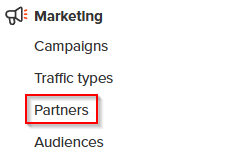
Sign in to your MyTracker account and go to the Partners section under the Marketing block.

MyTracker Partners section
2
Find Bidease

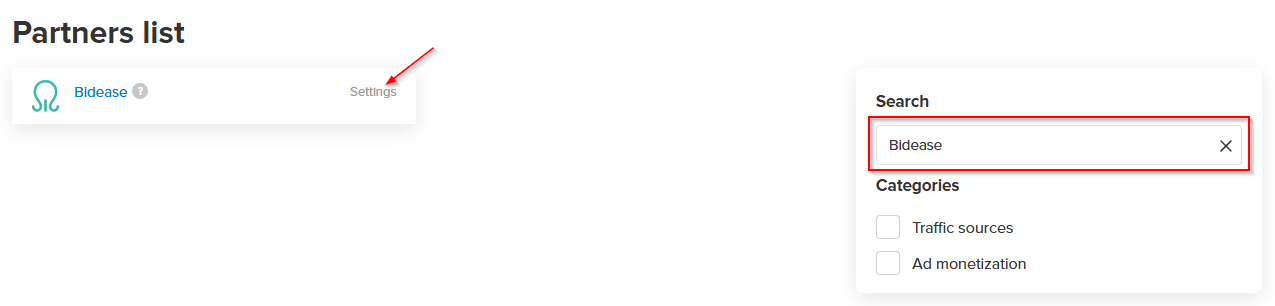
Search for Bidease in the list of partners and click Settings.

Bidease in the partner list
3
Select the application

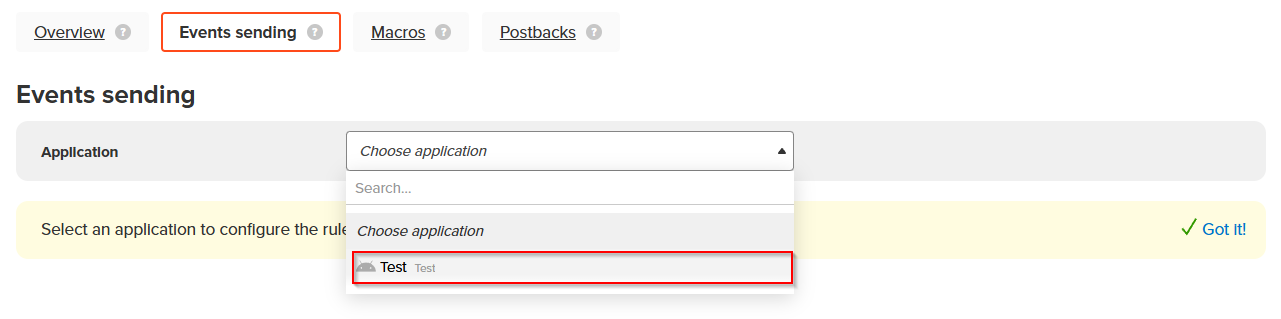
Select the application for which you want to configure postbacks.

Application selection
4
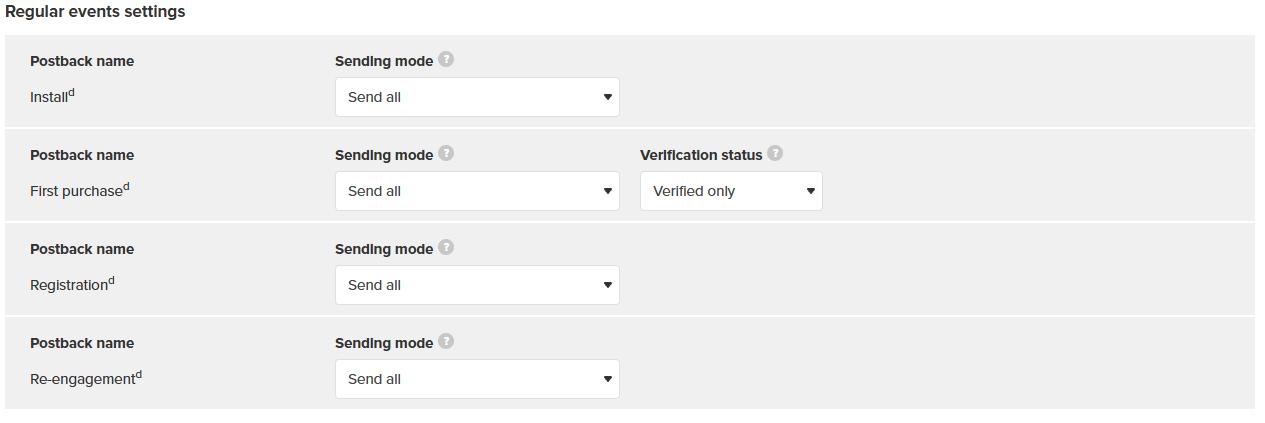
Configure all available postbacks

In the Sending mode menu, choose Send all to enable sharing of non-attributed data.

Postback settings
ⓘ
Custom events: if you have additional custom events, configure them as well.
5
Save

Click the Save button to apply your changes.

6
Share dashboard access with Bidease

Follow the instructions in the official MyTracker documentation: https://docs.tracker.my.com/en/environment/account.

ⓘ
Email to grant access to: tracker@bidease.com
bidease
Grow Your App with Ease
Questions? Contact your Bidease account manager
support@bidease.com

Was this article helpful?

That’s Great!

Thank you for your feedback

Sorry! We couldn't be helpful

Thank you for your feedback

Let us know how can we improve this article!

Select at least one of the reasons
CAPTCHA verification is required.

Feedback sent

We appreciate your effort and will try to fix the article