
MyTracker / Creating a Campaign and Tracking Links

Modified on Wed, 4 Nov at 6:18 AM

bideaseSETUP GUIDE
A step-by-step guide for advertisers to create a Bidease campaign and tracking links in MyTracker.
◉
Partner: Bidease
Create a Regular campaign with Bidease as the partner and Paid traffic.
⊕
Probabilistic + post-view
Turn on probabilistic attribution and enable post-view attribution on the tracking link.
⇨
Share the links
Copy the tracking links and send them to your Bidease account manager.
STEP-BY-STEP SETUP
9 Steps to Go Live
1
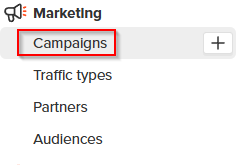
Open Campaigns

Sign in to your MyTracker account and go to the Campaigns section under the Marketing block.

MyTracker Campaigns section
2
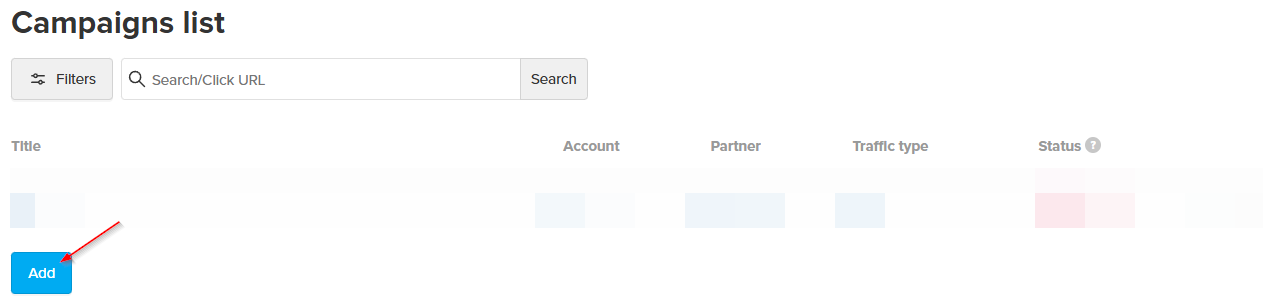
Add a campaign

Click the Add button to create a new campaign.

Add campaign button
3
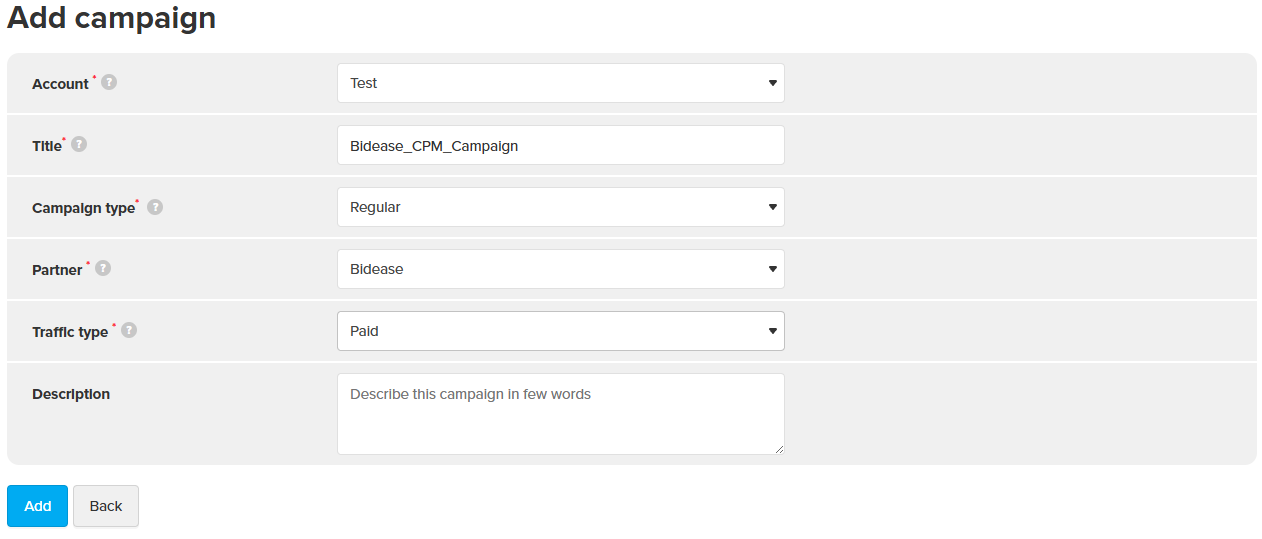
Set up the campaign

Set up a new campaign with the following parameters:

FieldValue
AccountSelect the desired account
TitleEnter the campaign name, e.g. Bidease_CPM_Campaign
Campaign typeRegular
PartnerBidease
Traffic typePaid
Campaign settings
4
Create the campaign

Click the Add button to create the campaign.

5
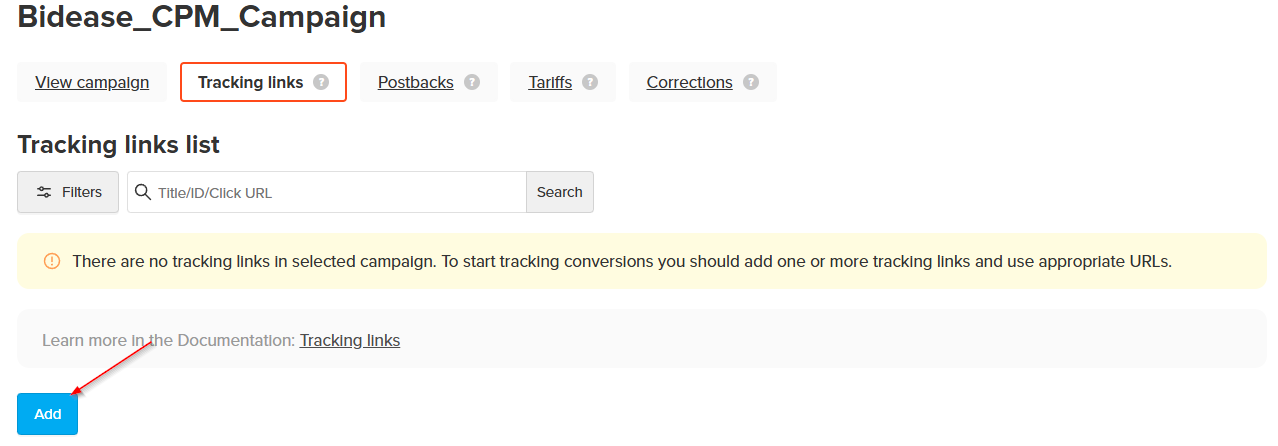
Add a tracking link

Go to the Tracking links block in the newly created campaign and click the Add button.

Tracking links block
6
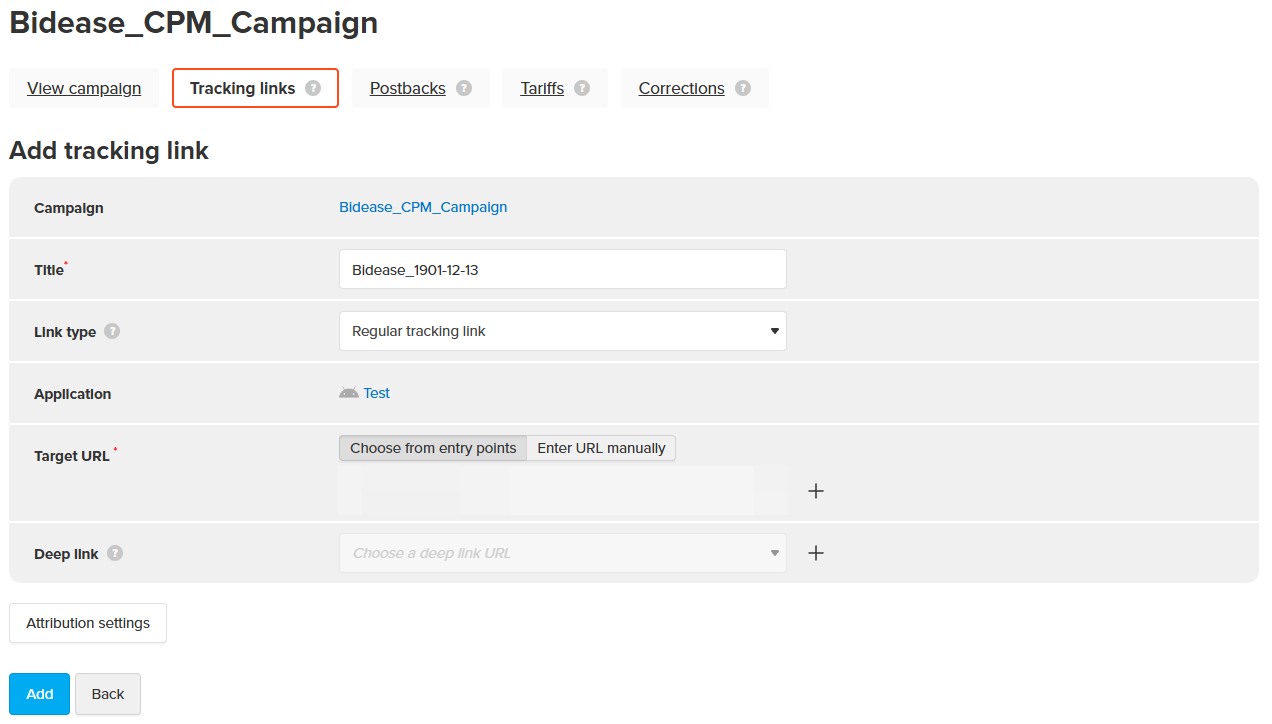
Configure the tracking link
FieldValue
TitleEnter a name for the tracking link, e.g. Bidease_CurrentDate
Link typeRegular tracking link
ApplicationMake sure you are creating the tracking link for the correct application
Target URLSelect the appropriate App Store or Google Play URL
Tracking link settings
7
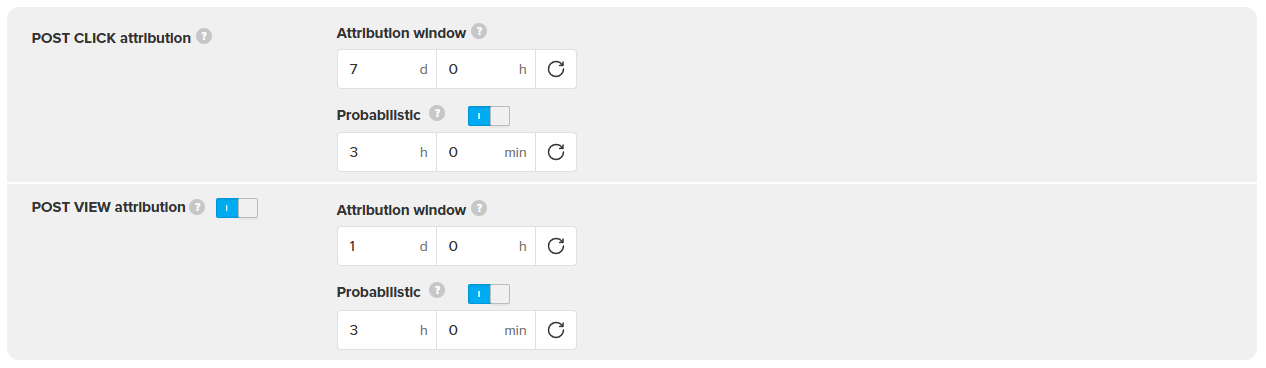
Configure attribution
■
Ensure Probabilistic attribution is turned on for both Postview and Postclick attribution
■
Ensure Postview attribution is enabled
■
You can adjust the attribution windows as needed, but we recommend the configuration shown in the screenshot
Attribution settings
8
Create the tracking link

Click the Add button to create the tracking link.

9
Share the links with Bidease

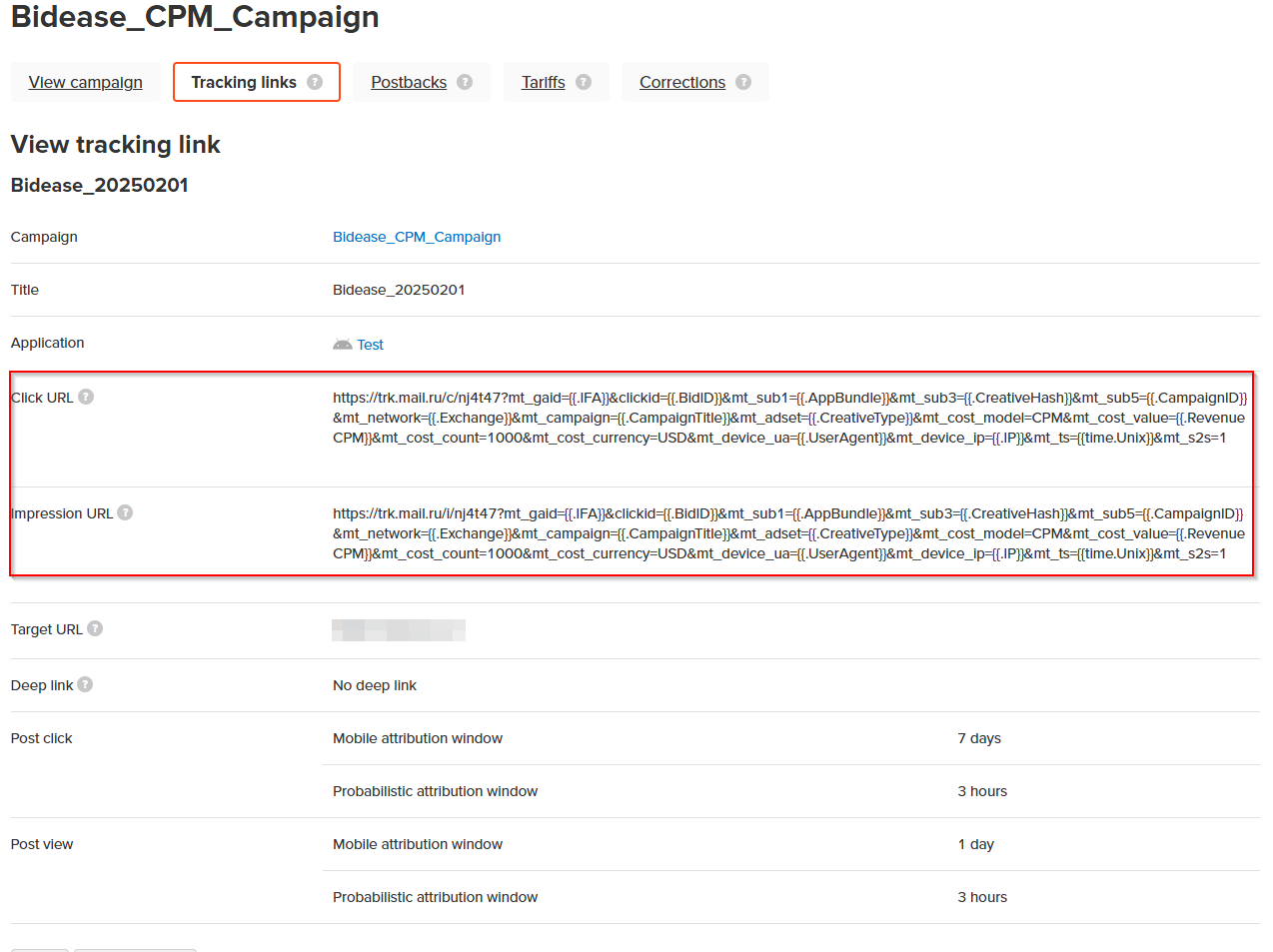
Copy the created tracking link(s) and share them with your Bidease account manager.

Copy the tracking link
⚠️
Make sure postbacks are properly configured. If you haven't set them up yet, go to the Postbacks block within the campaign and complete the configuration (see Adding Bidease as a Partner & Configuring Postbacks).
bidease
Grow Your App with Ease
Questions? Contact your Bidease account manager
support@bidease.com

Was this article helpful?

That’s Great!

Thank you for your feedback

Sorry! We couldn't be helpful

Thank you for your feedback

Let us know how can we improve this article!

Select at least one of the reasons
CAPTCHA verification is required.

Feedback sent

We appreciate your effort and will try to fix the article