
Google Tag Manager / Integration

Modified on Wed, 4 Nov at 6:18 AM

bideaseSETUP GUIDE
A step-by-step guide to sending conversion events from your website to Bidease with Google Tag Manager.
◉
Capture the click ID
A user-defined variable reads the Bidease click ID from the URL query.
⇨
Fire the Bidease pixel
A tag calls the Bidease pixel with the click ID, the event name and, for purchase events, the purchase amount.
✎
Pass {{.BidID}}
Add bidease_click_id={{.BidID}} to the tracking link you share with Bidease.

Google Tag Manager (GTM) connects three components:

ComponentDescription
TriggerAny event that happens on a page, e.g. a page load, a button click or a purchase
VariablesA set of system-defined and user-defined variables, e.g. click_id=Dejf2xf2
TagA piece of code that sends data to a system such as Google Analytics
STEP-BY-STEP SETUP
5 Steps to Go Live
1
Create the click ID variable

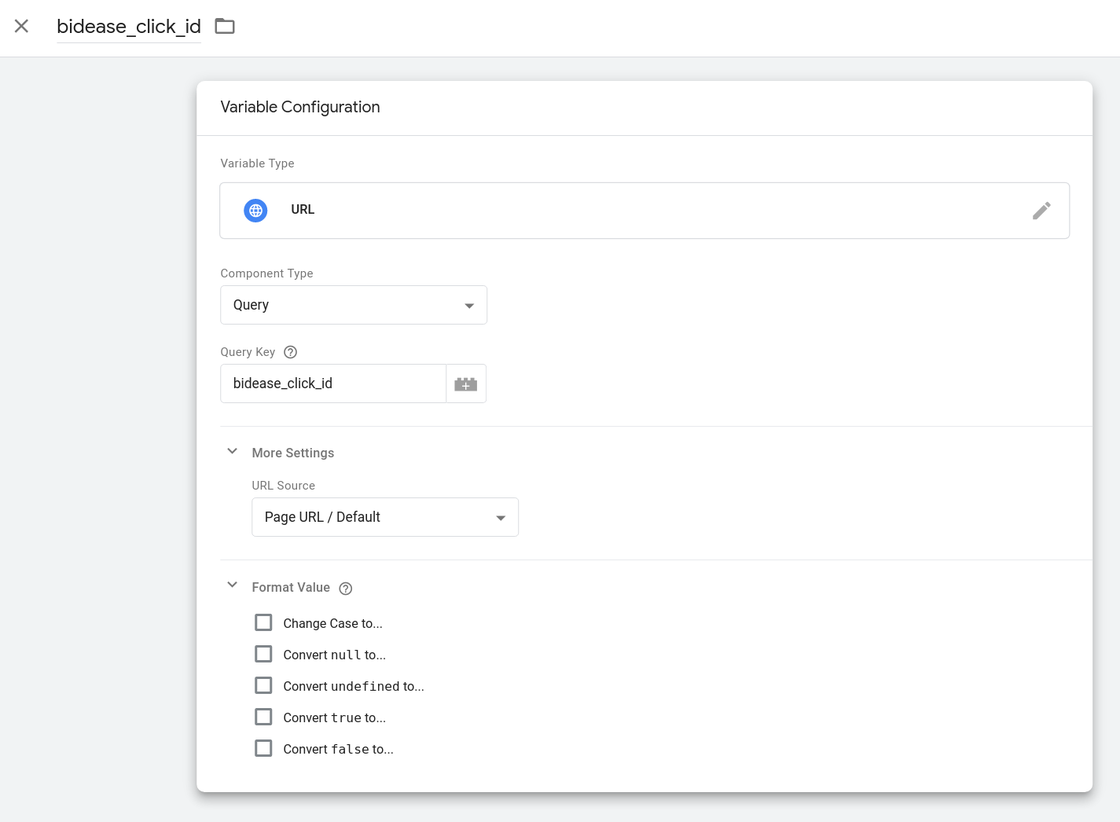
Create a user-defined variable that takes the Bidease click ID from the URL query: bidease_click_id. Use the settings shown in the screenshot below. For more details on user-defined variables, see the GTM documentation.

Variable settings

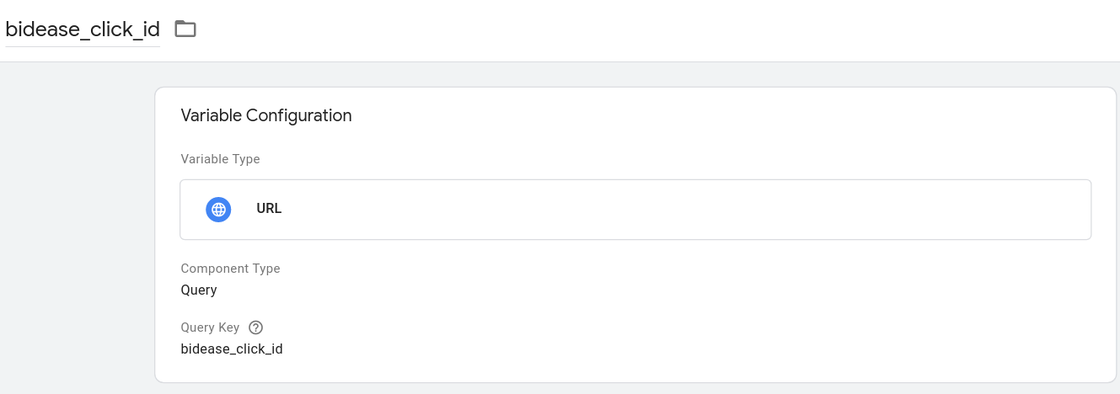
The final result should look like this:

Variable result
2
Choose the events

Decide which events should be sent to Bidease and implement them on your web page, for example:

■
Registration
■
Add To Cart
■
Purchase
3
Create the Bidease tag

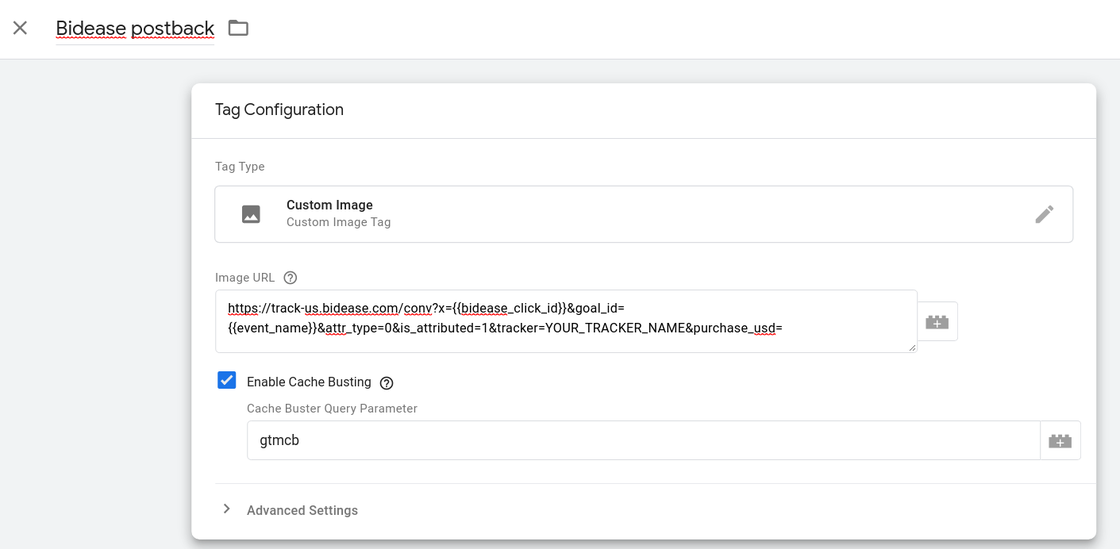
Create a new tag that calls the Bidease pixel, passing bidease_click_id, the event name (from Step 2) and purchase_usd (for purchase events, if needed). The tag settings should look like the screenshot below.

Tag settings
IMAGE URL TEMPLATE
https://track-us.bidease.com/conv?x={{bidease_click_id}}&goal_id={{event_name}}&attr_type=0&is_attributed=1&tracker=YOUR_TRACKER_NAME&bundle=YOUR_WEBSITE&purchase_usd={{purchase_usd}}&type=image
PlaceholderDescription
{{bidease_click_id}}The user-defined variable created in Step 1
{{event_name}}The event name defined in Step 2
YOUR_TRACKER_NAMEA custom tracker name. It does not affect tracking, but helps our support team identify your data in the logs; e.g. a Facebook advertiser can use facebook-gtm
YOUR_WEBSITEYour website address, e.g. example.com; it is passed as the bundle
{{purchase_usd}}The purchase amount (used only for purchase events)
4
Add triggers and publish

Add the necessary triggers to this tag, and don't forget to publish the new configuration.

5
Update the tracking link

Add bidease_click_id={{.BidID}} to the tracking link and share it with your Bidease account manager.

bidease
Grow Your App with Ease
Questions? Contact your Bidease account manager
support@bidease.com

Was this article helpful?

That’s Great!

Thank you for your feedback

Sorry! We couldn't be helpful

Thank you for your feedback

Let us know how can we improve this article!

Select at least one of the reasons
CAPTCHA verification is required.

Feedback sent

We appreciate your effort and will try to fix the article